Understand a command before Claude Code runs it
When Claude Code wants to run a shell command, it may stop and ask you first. Here's how to read that prompt, what changed in 2026, and how to tell what a long command really does.
A Claude Code permission prompt shows Claude's short description, the exact command and your choices: Yes, often "Yes, and don't ask again", sometimes "Yes, and switch to auto mode", and No. The Ctrl+E explanation was removed in version 2.1.257, so read the command itself, part by part. Since version 2.1.283, new terminal and VS Code sessions start in auto mode by default, so prompts are rarer.
What a Claude Code permission prompt shows
In Manual mode, Claude Code stops and asks you before most actions that edit files, run shell commands or reach the network. Not every command asks. A built-in set of read-only commands, such as ls, cat, grep and read-only forms of git, runs without a prompt.
For a shell command, Anthropic's example prompt shows Claude's short description of the step ("Run the test suite"), the command itself (npm test) and the line "This command requires approval". Then come your choices:
| Choice | What it does |
|---|---|
| Yes | Runs the command once. |
| Yes, and don't ask again for … | Runs it and saves a rule, so matching commands run without asking next time. |
| Yes, and switch to auto mode | Runs it and moves the session to auto mode. Claude Code adds it to Bash prompts in Manual and Edit automatically modes, when auto mode is available. |
| No | Doesn't run it. You can add a note telling Claude what to do instead. |
Some prompts offer only a one-time Yes: Claude Code leaves out "don't ask again" when it can't show you everything that rule would allow. On most prompts you can also attach a note. In the terminal, move to Yes or No and press Tab; in VS Code, the prompt has a box to tell Claude what to do instead.
What happened to Ctrl+E in Claude Code?
Up to version 2.1.256, you could press Ctrl+E on a Bash or PowerShell permission prompt to see a model-generated explanation of the command. Version 2.1.257, released on 1 September 2026, removed it, along with the permissionExplainerEnabled setting, which no longer does anything. If a guide tells you to press Ctrl+E, it was written for an older version.
Instead, you have Claude's description line. Since version 2.1.267 (9 September 2026), Claude is guided to describe what a command does in plain words. That helps, but it's a summary from the same model that wrote the command, and a summary can leave things out. Read the command too.
Want an explanation before you decide? Choose No and ask for one in your note, for example: "Explain each part of this command first." Claude gets the note as your reason and carries on from there.
Claude Code auto mode is now the default
Since version 2.1.283 (25 September 2026), auto mode is the built-in starting mode for interactive terminal and VS Code sessions. Before that, it was the starting mode only on Pro, Max and Team plans. In auto mode, a second model, the classifier, reviews actions instead of you, so routine commands run without a prompt. On Enterprise plans and API accounts, its checks can also count towards your token usage; see where your Claude Code tokens go.
The classifier blocks some actions by default, such as force pushes, downloading and running code, and git reset --hard. If it blocks an action 3 times in a row or 20 times in total, auto mode pauses and Claude Code goes back to asking you. Anthropic's docs say plainly that auto mode "reduces permission prompts but does not guarantee safety."
So the prompts you still see deserve attention. Ask rules you've set still prompt, repeated blocks bring prompts back, and some sessions start in Manual mode, for example when a settings file turns auto mode off or your model doesn't support it. To check your mode, look at the mode indicator at the bottom of the prompt box in VS Code, or at the status bar in the terminal.
Permission modes and saved rules
You can change mode at any time: press Shift+Tab in the terminal, or click the mode indicator in VS Code. The modes, by their VS Code names:
| Mode | What runs without asking |
|---|---|
| Manual | Reads only. |
| Edit automatically | Reads, file edits and common file commands, including mkdir, mv, cp, rm and sed, inside your working folders. |
| Plan | Reads, plus commands the classifier approves when auto mode is available. Claude edits nothing until you approve its plan. |
| Auto | Everything, with the classifier checking first. |
| Bypass permissions | Everything. Anthropic says to use it only in isolated containers and virtual machines. |
Rules give you finer control. /permissions opens a dialog where you can view, add and remove allow, ask and deny rules. In VS Code, type / and choose Permissions in the Customize section.
An ask rule suits you if you like auto mode but want a checkpoint before certain commands. Saved in ~/.claude/settings.json, this one makes Claude Code ask before any command that starts with git push, even in auto mode:
{
  "permissions": {
    "ask": ["Bash(git push *)"]
  }
}
Rules match the command as Claude writes it. Bash(git push *) doesn't catch git -C . push, which is why Anthropic says a Bash rule isn't a security boundary. And pick "don't ask again" only if you'd be happy for every matching command to run unseen.
How to read a long command before you approve it
Here's a prompt worth slowing down for: Claude wants to scrub personal data from two files, then commit and push.
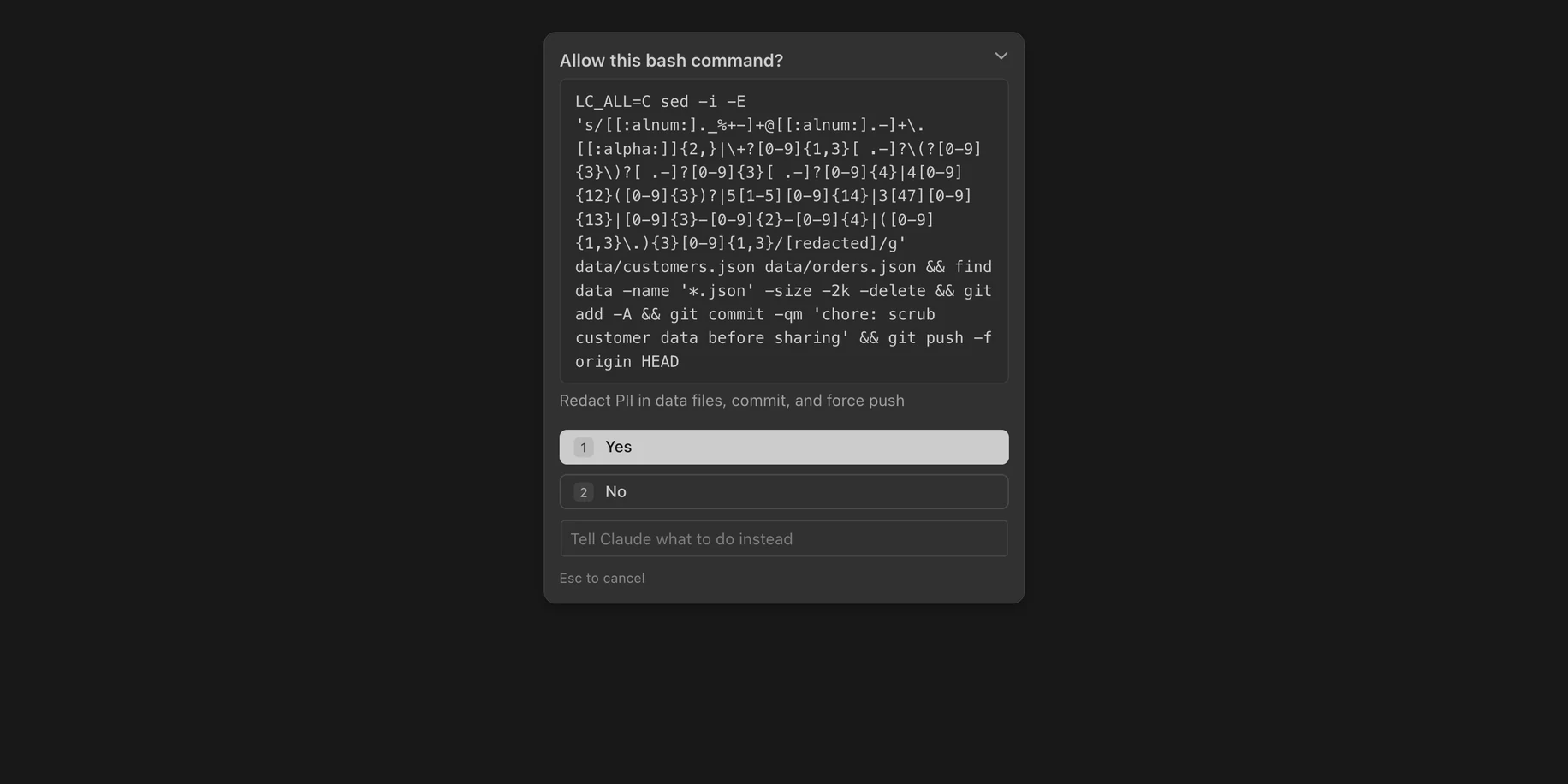
- Split it into parts.
&&runs the next command only if the one before it succeeded,;runs it either way, and|feeds one command's output into the next. - Find the program and its flags. The program is usually the first word of each part:
sed,find,git. Small flags change a lot, like-deleteonfindor-fongit push. - Check the paths. Which files and folders does each part touch? Are they the ones you meant?
- Compare with Claude's description. Anything the command does that the description leaves out is worth a question.
The same command, split into parts (long pattern shortened):
| Part | What it does |
|---|---|
sed -i -E '…' data/customers.json data/orders.json | Edits both files in place, replacing text that matches patterns for email addresses, phone numbers, card numbers, Social Security numbers and IP addresses with "[redacted]". |
find data -name '*.json' -size -2k -delete | Deletes every small .json file under data. |
git add -A | Stages every change in the repository, deletions included. |
git commit -qm '…' | Commits with that message, quietly. |
git push -f origin HEAD | Force-pushes the current branch, which Git warns can cause the remote repository to lose commits. |
Claude's description, "Redact PII in data files, commit, and force push", never mentions the find step, which deletes files. That's the gap to catch before you choose Yes.
Commands worth a second look
These patterns deserve a slower read.
- Deleting.
rm -rfremoves folders and everything in them, and never asks you to confirm.find … -deletedeletes whatever it matches. - Changing files in place.
sed -irewrites files.>empties a file before writing to it. - Rewriting or throwing away git work.
git push -f;git reset --hard, which overwrites your files with a commit's version; andgit clean, which removes files not under version control. - Running downloaded code.
curl … | bashdownloads a script and runs it at once, which auto mode blocks by default. - Running as administrator.
sudoruns a command as the superuser or another user.
A plain-English line under every command, with Lens
I make Layers for Claude Code, a free VS Code extension. It's unofficial: Anthropic doesn't make or endorse it. Its Lens feature adds a plain-English sentence under every command Claude Code asks to run in VS Code, with flags such as "changes files", "deletes files", "uses the network" and "rewrites git history".
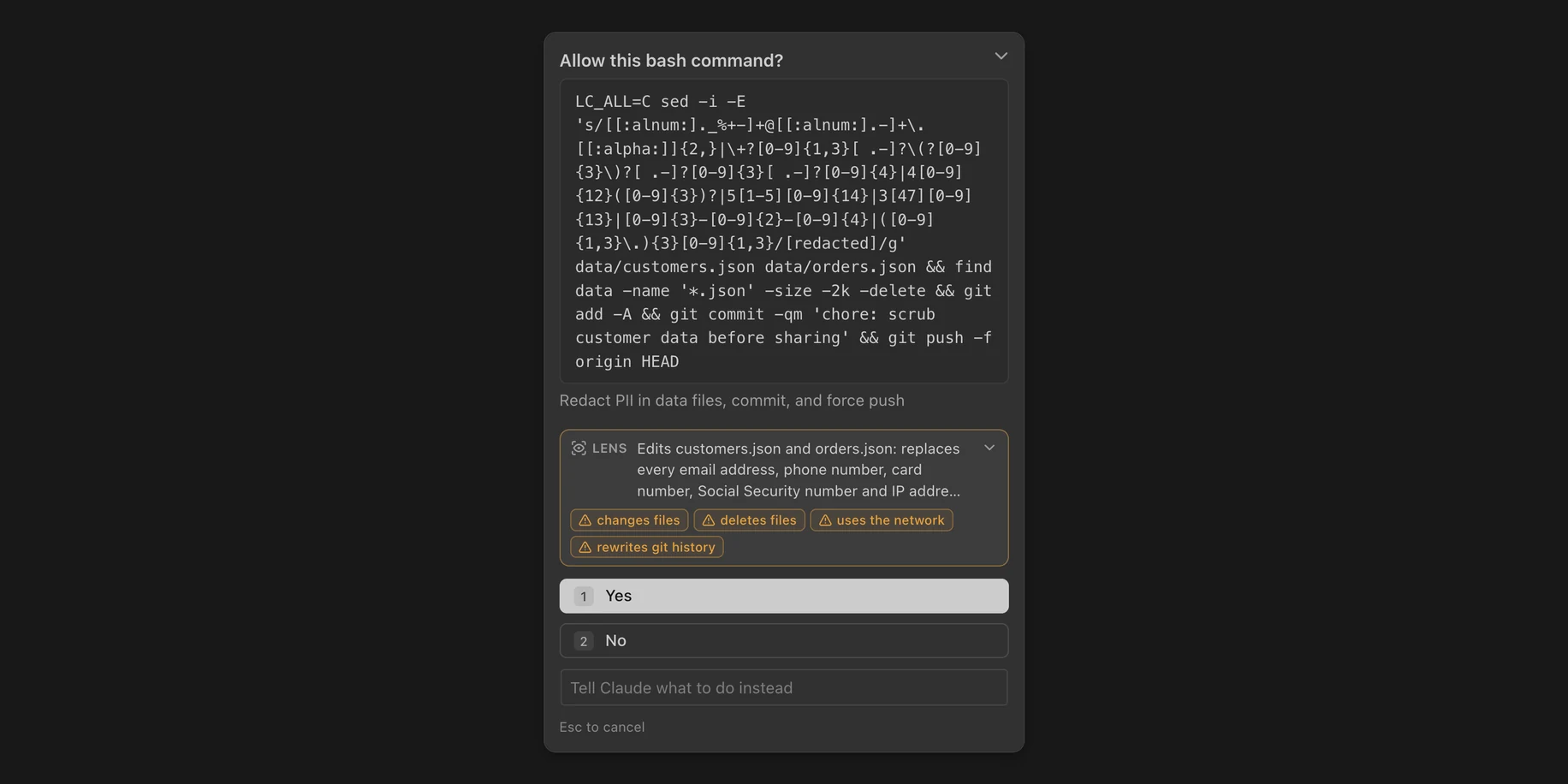
- It reads the command, not the description. Lens works the sentence out from the command itself, on your computer. Nothing is sent anywhere.
- Ask Claude, only if you click. For a command Lens can't read, such as your own script, an Ask Claude button asks Claude for the sentence: one short request on your current account.
Lens explains; it doesn't decide. It can be wrong or miss things, and it doesn't make any command safe. It also appears only when Claude Code asks, which in auto mode is less often.
Layers needs VS Code 1.100 or newer and runs on top of Anthropic's Claude Code extension, which VS Code installs with it. Lens works in that extension's panel, not in the terminal, the desktop app or claude.ai. So far, Layers is tested only on macOS. Lens needs Layers to change Claude Code's installed files, which it does only after asking, with a backup; Layers: Remove the layer (restore Claude Code's files) puts them back. No servers, no sign-up, no tracking. Install it from the VS Code Marketplace.
Questions
How do I get Claude Code to explain a command before I approve it?
Read Claude's description, then the command, part by part. The built-in Ctrl+E explanation was removed in version 2.1.257. If you're unsure, choose No and ask Claude to explain each part first. In VS Code, Layers, a free unofficial extension I make, adds a plain-English line under each command.
How do I stop Claude Code asking for permission every time?
Use auto mode, now the default, where a classifier checks actions instead of asking you. In Manual mode, choose "Yes, and don't ask again" for commands you trust, or add allow rules with /permissions. Keep Bypass permissions for isolated containers and virtual machines.
Why doesn't Claude Code ask before running commands anymore?
Since version 2.1.283, new terminal and VS Code sessions start in auto mode on every plan; Pro, Max and Team plans had it earlier. To be asked again, switch to Manual with Shift+Tab or the mode indicator. To start every VS Code conversation in Manual, set claudeCode.initialPermissionMode to default in your VS Code user settings. For the terminal, set permissions.defaultMode to default in ~/.claude/settings.json.
Sources
I checked every source on 23 October 2026.
- Claude Code Docs: Configure permissions
- Claude Code Docs: Choose a permission mode
- Claude Code Docs: All settings
- Claude Code Docs: Claude Code changelog
- Claude Code Docs: Use Claude Code in VS Code
- Claude Code Docs: Commands
- man7.org: bash(1), Linux manual page
- man7.org: sed(1), Linux manual page
- man7.org: find(1), Linux manual page
- man7.org: rm(1), Linux manual page
- man7.org: sudo(8), Linux manual page
- Git: git-add documentation
- Git: git-commit documentation
- Git: git-push documentation
- Git: git-reset documentation
- Git: git-clean documentation