Make Claude Code in VS Code look like yours
How to change the way Claude Code looks in VS Code: the colour theme, fonts and settings you already have, /theme in the terminal, mods, and what the free Layers extension adds.
Claude Code's chat panel in VS Code uses your VS Code colour theme and VS Code's chat font settings, so change those first. In a terminal, /theme picks Claude Code's colours and lets you make custom themes. Mods can redraw parts of the panel, and the free Layers extension adds five chat looks, callout boxes and marks on the files Claude touches.
Change Claude Code's colours with your VS Code theme
The Claude Code extension draws its chat panel in the colours of your VS Code colour theme. Two September 2026 releases tied even the details to it: diff blocks now "follow the active VS Code color theme, including high contrast", and switches turn "the editor theme's button color" when on (Claude Code changelog, versions 2.1.267 and 2.1.271). So the quickest way to change how Claude Code looks is to change VS Code's theme.
- Open the theme pickerRun Preferences: Color Theme from the Command Palette, or press Cmd+K then Cmd+T on a Mac (Ctrl+K then Ctrl+T on Windows and Linux).
- Preview themesUse the Up and Down keys to move through the list. VS Code previews each one (VS Code docs).
- Keep onePress Enter. The Claude chat follows whichever theme is active, including ones from the Marketplace.
Text follows VS Code too. The panel uses VS Code's chat.fontSize and chat.fontFamily settings: the size in pixels, 13 by default, and the font "for Markdown content in chat". Claude Code has followed both since version 2.0.35 (changelog). Open Settings with Cmd+, (Ctrl+, on Windows and Linux) and search for chat.font.
Customise the Claude Code panel with its settings
None of the extension's own settings is a colour theme, but several change what the panel shows and where it sits. Open them with Cmd+, (Ctrl+, on Windows and Linux) and go to Extensions > Claude Code, or type / in the prompt box and pick General config… (Anthropic's settings list).
| What you want | How |
|---|---|
| The chat on the right, the left or in a tab | Drag the panel's tab or title bar to the secondary sidebar (right), the primary sidebar (left) or the editor area. Claude Code remembers where you put it (docs). |
| Less on screen | Turn on Focus view: claudeCode.focusView, or Ctrl+Option+F on a Mac and Ctrl+Alt+F on Windows and Linux. Tool calls, results and thinking fold into rows you can open. |
| No message times | Turn off claudeCode.showMessageTimestamps. It's on by default. |
| Your own spinner words | Set claudeCode.spinnerVerbs to add to, or replace, the words the spinner shows while Claude works. |
| The terminal look | Turn on claudeCode.useTerminal to open Claude Code in terminal mode instead of the chat panel (docs). The next section then applies. |
Change the Claude Code theme in the terminal with /theme
When you run Claude Code in a terminal, including VS Code's integrated terminal, /theme sets its colours. Anthropic documents it on its terminal setup page, and the same picker is in /config. The list has an auto option that matches your terminal's light or dark background, light and dark themes, colourblind-accessible (daltonized) themes, ANSI themes that use your terminal's palette, and your own custom themes (commands list). It changes Claude Code's colours, not your terminal's: "Claude Code does not control the terminal's own color scheme".
A tip for VS Code's terminal: pick one of the ANSI themes. There, the ANSI colours "are determined by the active color theme" (VS Code docs), so Claude Code takes on your editor's colours.
To make your own, pick New custom theme… at the end of the /theme list, name it, and choose colours to override, with a live preview. Or write the file yourself: a custom theme is a JSON file in ~/.claude/themes/ with three optional fields, name, base (the built-in theme it starts from) and overrides. This is Anthropic's example, saved as ~/.claude/themes/dracula.json:
{
  "name": "Dracula",
  "base": "dark",
  "overrides": {
    "claude": "#bd93f9",
    "error": "#ff5555",
    "success": "#50fa7b"
  }
}
claude is the main accent, used for the spinner and the assistant label. Claude Code watches the folder and reloads when a file changes, so edits show up in a running session (if the folder is new, restart once after your first theme file). The colour token reference lists the colours you can set, and plugins can ship themes too. A custom status line adds a bar at the bottom that shows whatever your script prints, such as the model or git branch.
Mods that draw in the VS Code chat panel
A mod is "a plugin that changes how Claude Code looks and behaves", in Anthropic's words. Since extension version 2.1.299, released on 14 October 2026, what a mod draws shows up in the VS Code chat panel too (Anthropic's VS Code page, changelog). A mod can add:
- a pane beside the conversation or above the prompt box
- a toast or a status line above the prompt box
- its own version of a message or a tool call
The panel labels each change with the plugin's name, as in "Edited by the token-chart plugin", and you stop a mod by turning its plugin off in /plugins. A mod is code that runs with your permissions, so Anthropic's advice is to install mods only from authors and marketplaces you trust.
Five chat looks with Layers
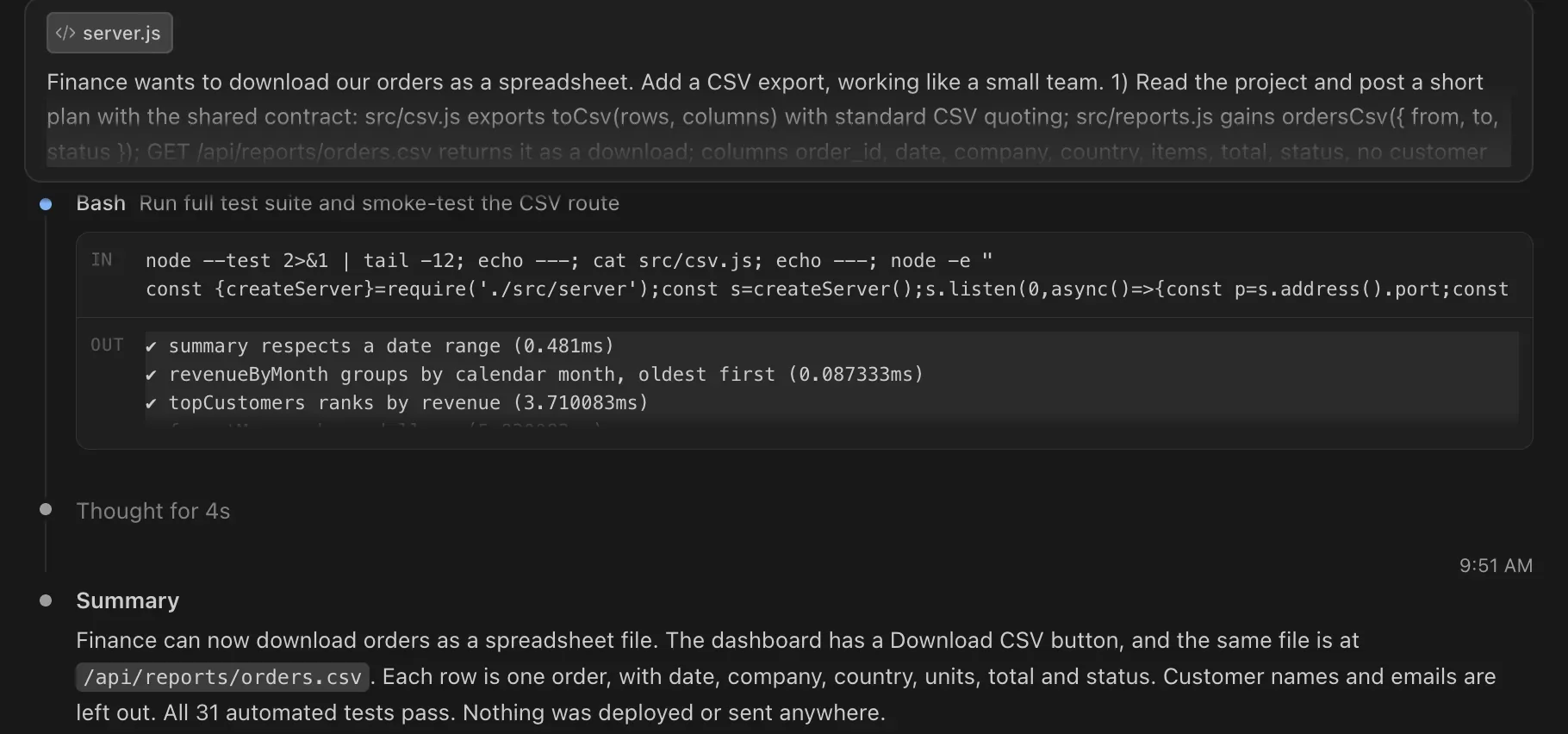
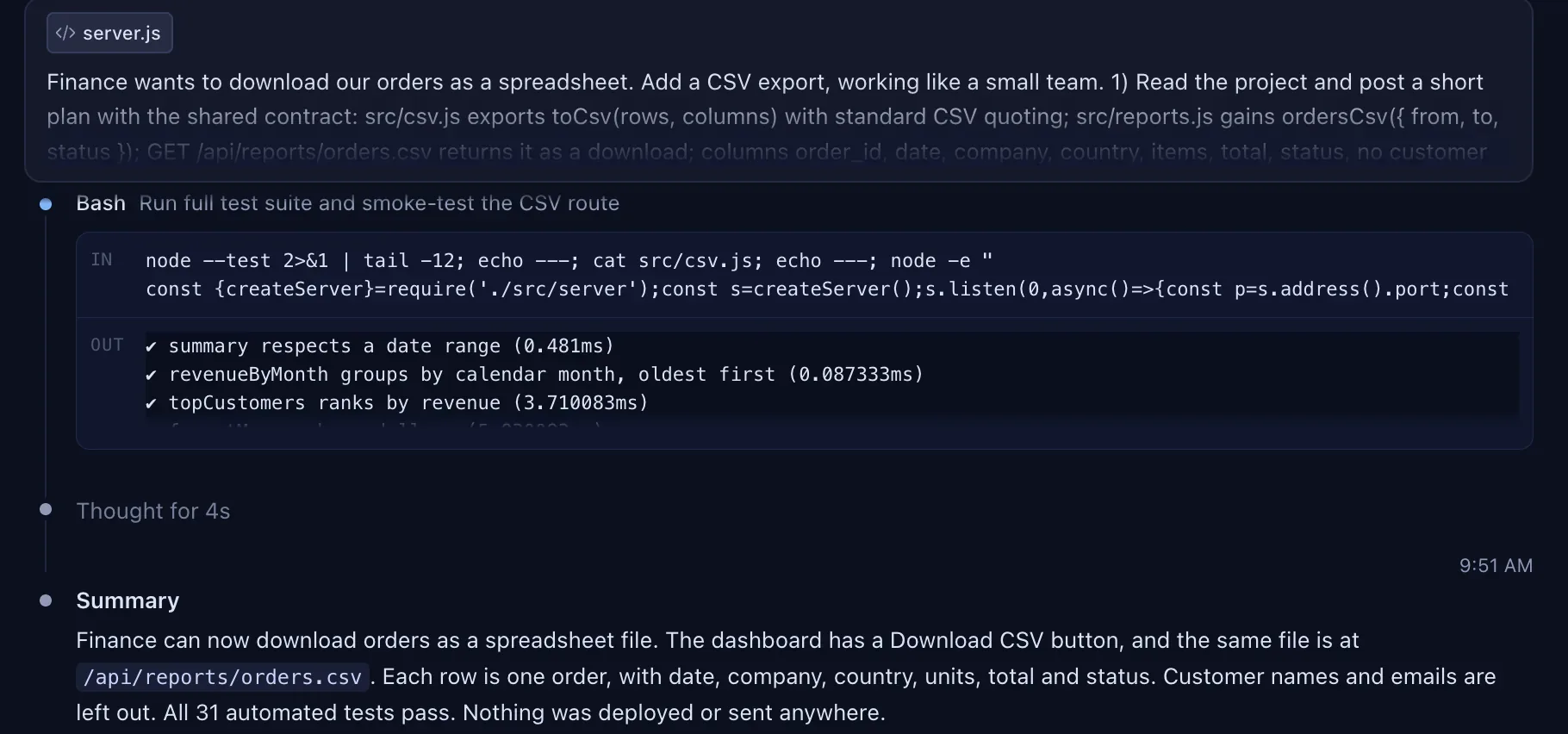
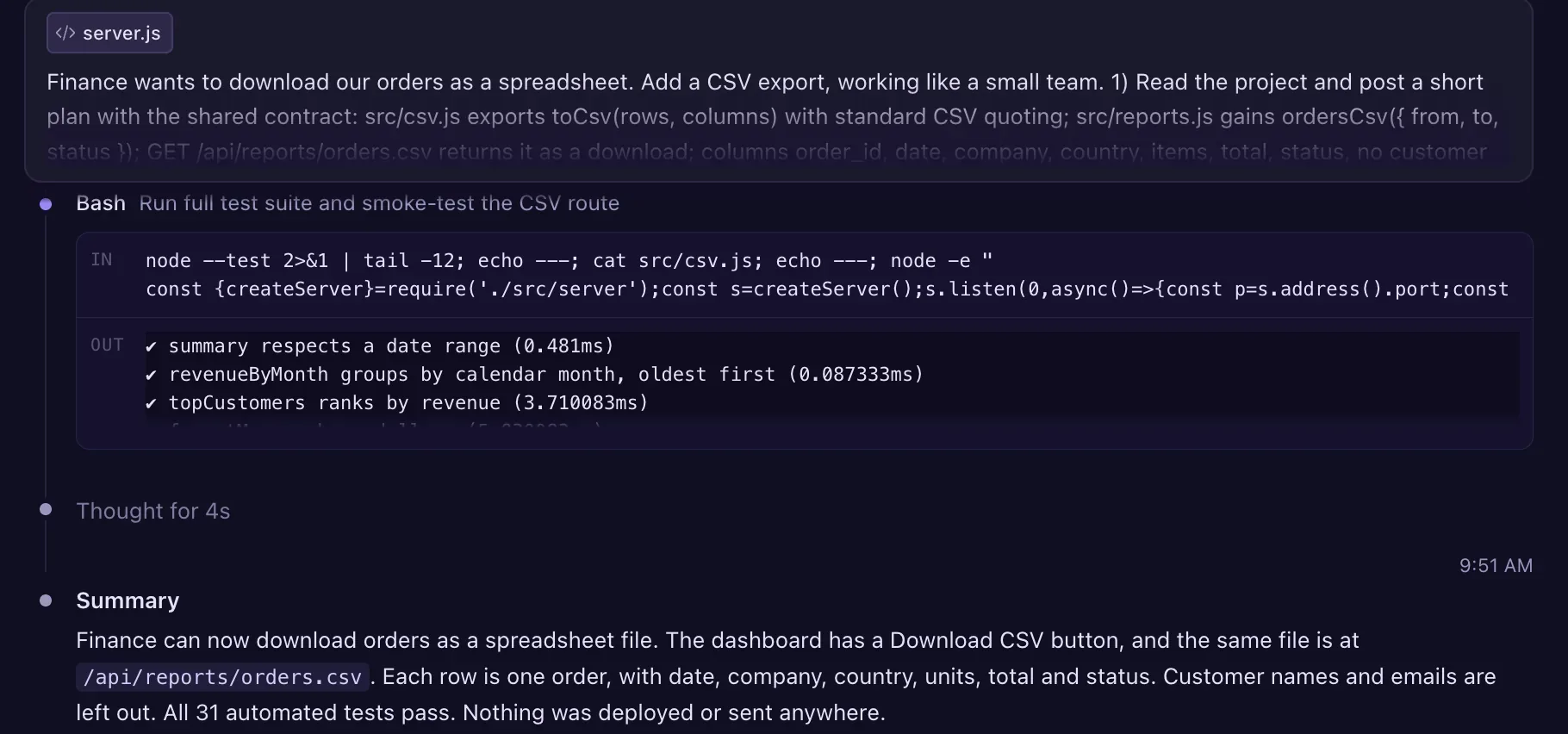
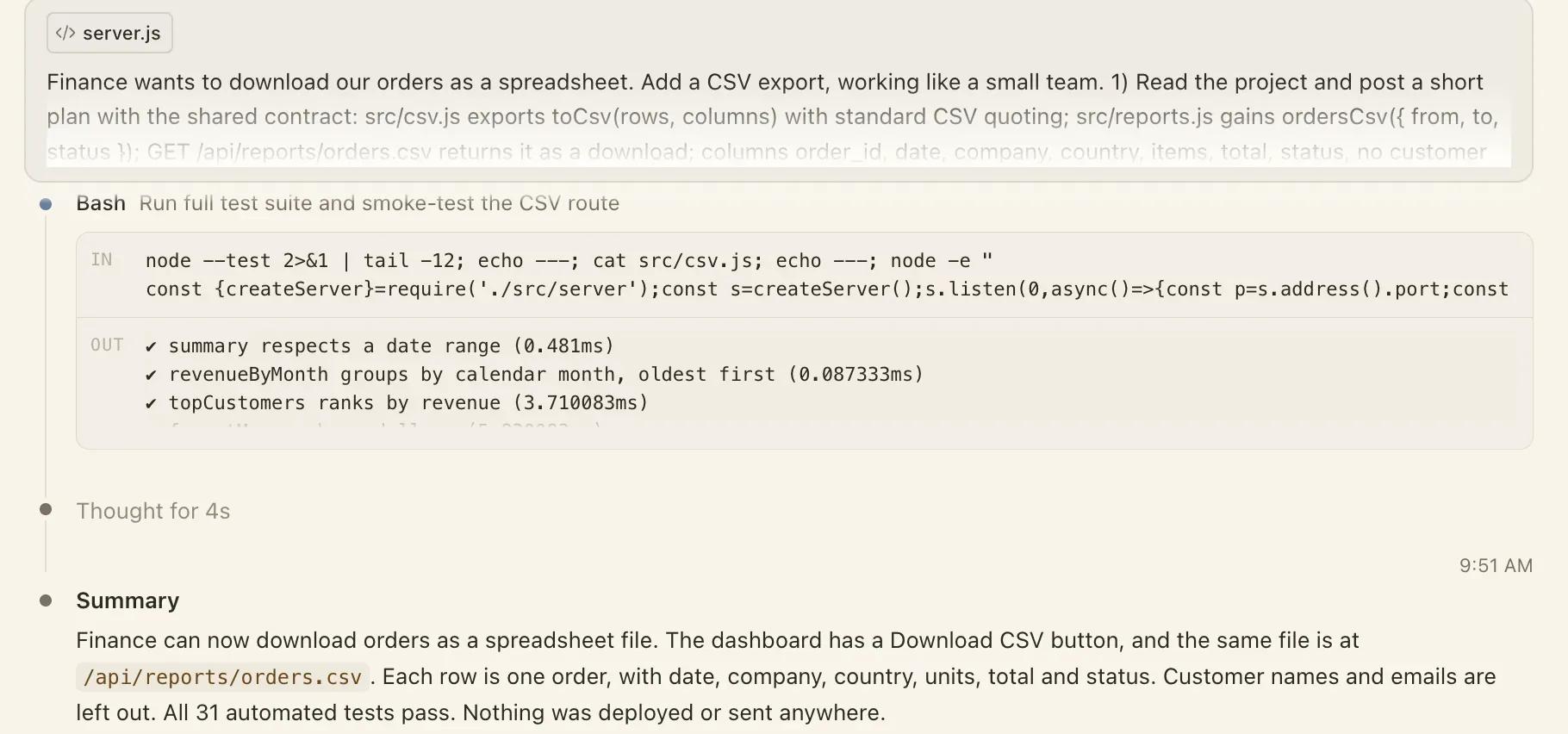
Everything above comes with VS Code and Claude Code. If you want the chat itself to look different, Layers is one option. I make it. It's a free extension that sits on top of Claude Code in VS Code, and it's unofficial: Anthropic doesn't make or support it.
Layers has five looks for the chat. Pick one in the Settings tab of the Layers sidebar, run Layers: Choose the chat's skin, or set layers.skin. They change Claude Code's chat in VS Code only, not the terminal, the desktop app or claude.ai. The pictures show the same sample chat in each look.
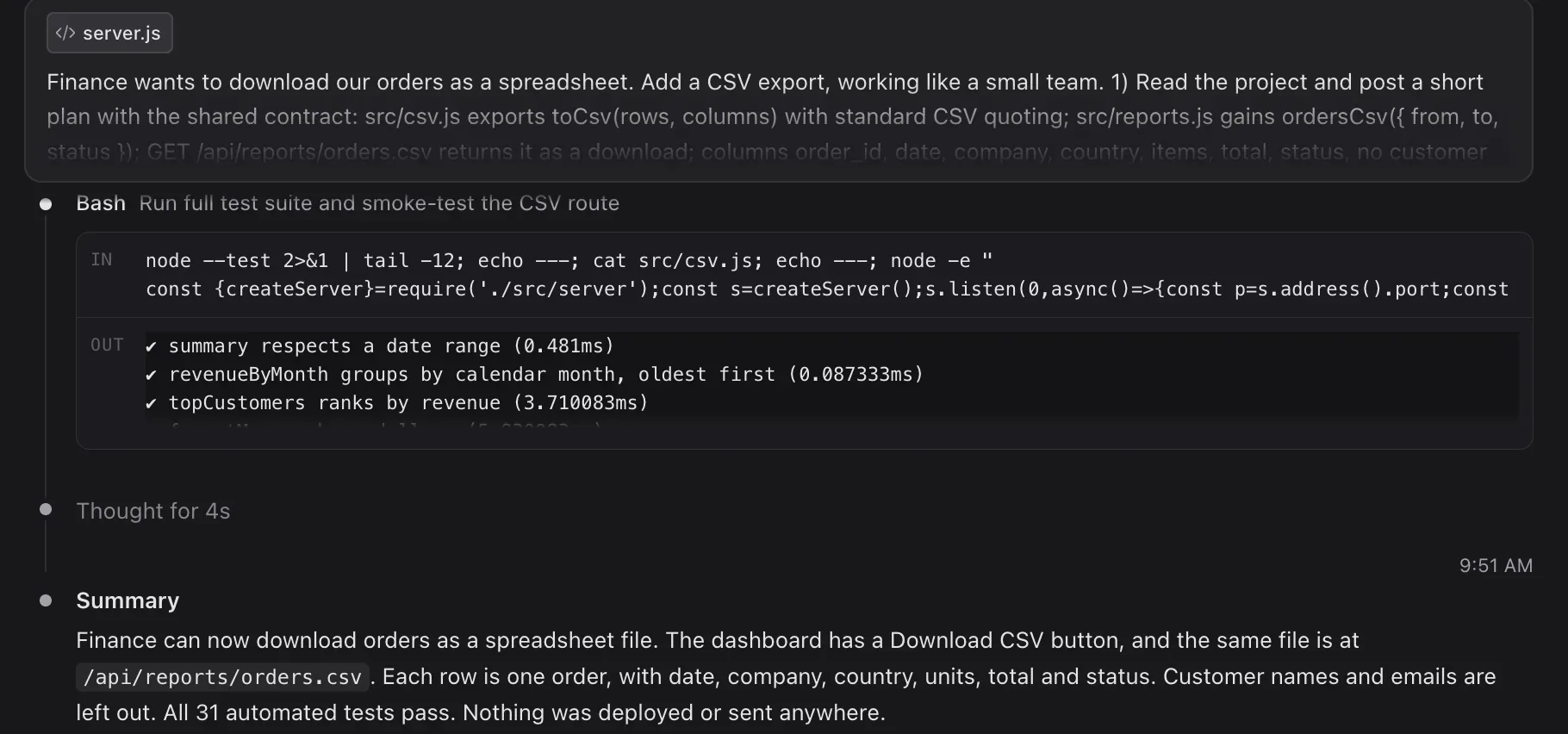
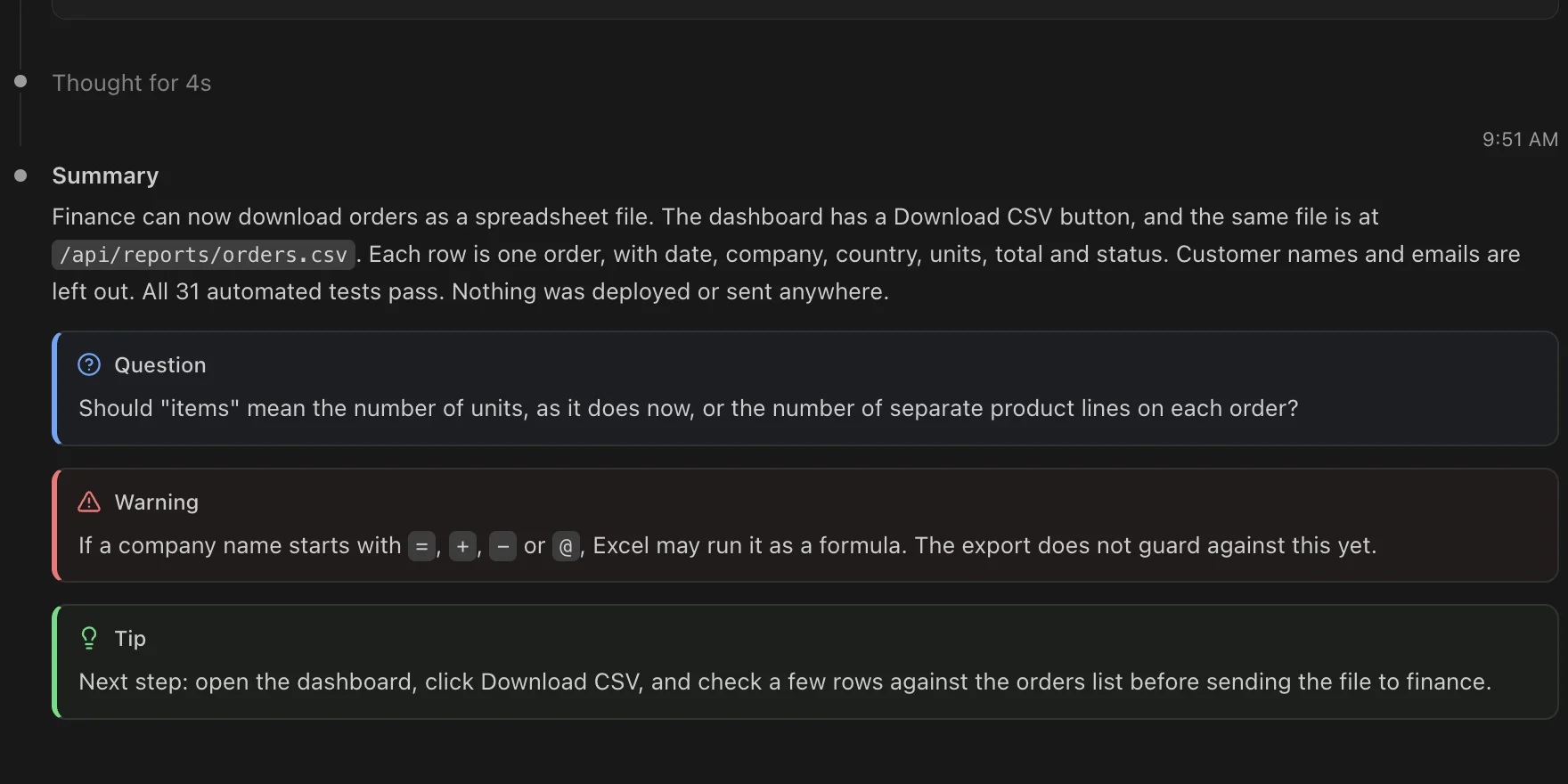
Callout boxes for Claude's questions, warnings and tips
In a long reply, the one line that needs you is easy to miss. Layers teaches Claude to flag its questions, warnings and tips, then draws each one as a labelled box, such as Question, Warning, Tip, Note or Important.
Turn them off or on with the switch in the Layers Settings tab, the layers.callouts setting, or Layers: Toggle callout boxes in the chat.
R, E and N marks in the VS Code Explorer
Layers also marks Claude's work in VS Code's own file list. R means Claude read the file, E that it edited it, N that it created it, and ● marks the file it's working on now. A folder with an edited file inside gets a dot. A list in the Explorer shows every file the chat read or changed, and lines Claude just edited flash briefly in open files.
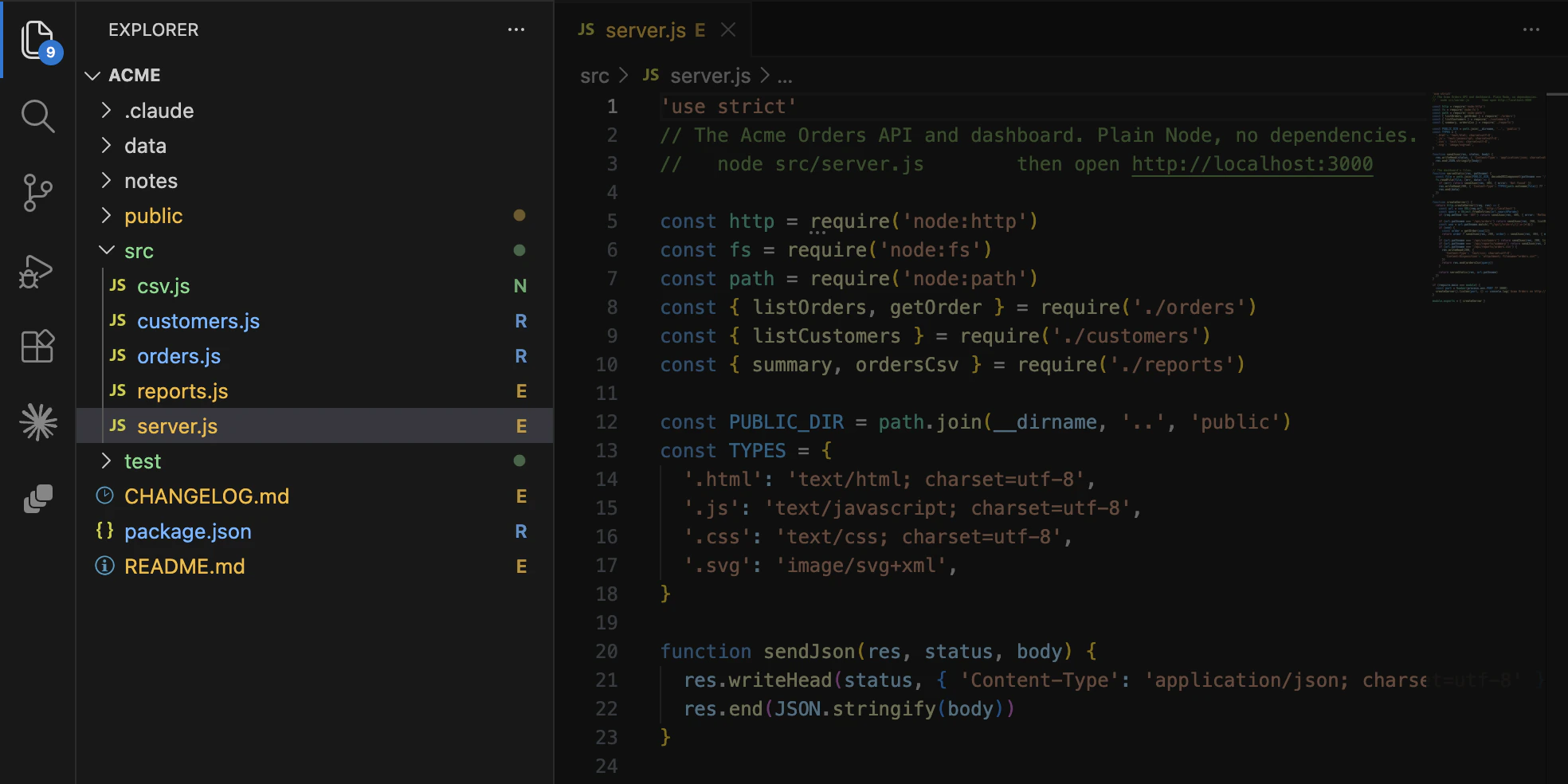
The letters have their own colours, and you change them like any VS Code colour: set lumo.read, lumo.edited, lumo.created, lumo.active or lumo.flash under workbench.colorCustomizations in your settings. For example:
"workbench.colorCustomizations": {
  "lumo.read": "#58a6ff",
  "lumo.edited": "#d29922",
  "lumo.created": "#3fb950"
}
Mods with one switch
Layers comes with a few small mods, and its Settings tab has an on/off switch for each. Pulse shows a progress bar above the message box while Claude's helpers work, and /pulse opens a panel with each helper's model, progress and time. Skins draws diagrams and charts in Claude's replies as pictures. It starts off, so switch it on if you want it. Both are forks of MIT-licensed projects by other authors, credited in Layers' README.
Undo it: remove the layer
To draw its looks, Layers changes Claude Code's installed files, so it asks first. The first time, it explains the change and waits for you to click Apply, and it keeps a backup of each file it changes. To take it off:
- Remove the layerClick Remove in the Layers Settings tab, or run Layers: Remove the layer (restore Claude Code's files), then reload the window. Claude Code's files go back exactly as they were, and the Layers sidebar stays.
- Or uninstallUninstalling Layers also puts Claude Code's files back, the next time VS Code restarts. Run Remove the layer first to do it straight away.
Layers has no servers, no sign-up and no tracking. It needs VS Code 1.100 or newer, and VS Code installs Claude Code along with it. It's tested on macOS; Windows and Linux should work but haven't been tested yet. It isn't available for Cursor, Windsurf or Antigravity yet.
Questions
Where is the theme setting in the Claude Code extension?
There isn't one in its settings list. The chat panel uses your VS Code colour theme, so change that with Preferences: Color Theme, and set text size with VS Code's chat.fontSize.
Is there a light theme for Claude Code in VS Code?
Pick a light VS Code colour theme and the chat panel follows it. In a terminal, /theme has light themes and an auto option that follows your terminal's background. In Layers, the Paper look is light.
Can I change how Claude writes, not just how it looks?
Yes, with an output style. In VS Code, type / in the prompt box and choose Output styles to pick Concise, Explanatory, Learning or Proactive, or a style you write yourself. This needs Claude Code 2.1.257 or later. An output style changes Claude's tone and format, not the colours.
Will a Claude Code update undo the Layers look?
Layers puts its layer back after Claude Code updates, as long as the layers.enabled setting is on. It's on by default.
Is Layers made by Anthropic?
No. Layers is an unofficial extension made by one developer, me. Anthropic doesn't make, endorse or support it. It works on top of Anthropic's Claude Code extension.
Sources
I checked every page below on 23 October 2026.
- Anthropic: Use Claude Code in VS Code
- Anthropic: Claude Code changelog
- Anthropic: Configure your terminal for Claude Code
- Anthropic: Commands
- Anthropic: Customize your status line
- Anthropic: Mods overview
- Anthropic: Output styles
- Microsoft: Themes (VS Code docs)
- Microsoft: AI settings reference (VS Code docs)
- Microsoft: Terminal Appearance (VS Code docs)
- Visual Studio Marketplace: Layers for Claude Code