How to switch Claude accounts in VS Code
You have more than one Claude account, say work and personal, and you want Claude Code in VS Code to use the right one. Here are the two built-in ways to switch, what to check when the wrong account answers, and a one-click option.
In the Claude Code panel, type /login and sign in with the other account. You stay on one account at a time. To stay signed in to several, give each account its own settings folder with CLAUDE_CONFIG_DIR, then pick the folder in VS Code's claudeCode.environmentVariables setting, as an absolute path. The free Layers extension switches between those folders in one click.
Switch accounts by signing in again
Claude Code's own way to change accounts is to sign in again. Anthropic's quickstart says: "To switch accounts later or re-authenticate, type /login inside the running session." In VS Code that takes three steps.
- Open Switch account. In the Claude Code panel, type
/login. You can also type/and pick Switch account from the command menu. - Sign in with the other account. Finish in your browser with the account you want, the same way as the first time you signed in.
- Check which account you're on. Type
/statusto see the account, or/usageto open Account & usage, which shows your signed-in account and usage bars for its plan's limits.
This is the quickest way, but it keeps you on one account at a time, so going back means signing in again. To sign out without picking another account, choose Sign out in the command menu or type /logout. In the terminal, /login works the same way.
Stay signed in to multiple accounts: one settings folder each
To keep two accounts signed in at once, such as work and personal, Anthropic's docs say to "give each account its own configuration directory" and choose it with the CLAUDE_CONFIG_DIR environment variable. "Each directory has its own settings, session history, and claude.ai login or API key." Claude Code keeps each folder's sign-in apart (on a Mac, in its own Keychain entry), so one doesn't replace the other.
Your current account stays in ~/.claude, the default folder. The second account gets a new one, such as ~/.claude-work.
In the VS Code panel
- Get the folder's full path. The panel needs an absolute path, because "the extension doesn't expand
~and ignores a relative value." On a Mac or Linux,echo $HOME/.claude-workin a terminal prints it. - Add it to your user settings. Open the Command Palette (
Cmd+Shift+Pon a Mac,Ctrl+Shift+Pon Windows and Linux), run Preferences: Open User Settings (JSON) and add this inside the outer braces, with your own path. On Windows, write each backslash twice."claudeCode.environmentVariables": [ { "name": "CLAUDE_CONFIG_DIR", "value": "/home/you/.claude-work" } ] - Start a new chat and sign in. The new folder has no sign-in yet, so Claude Code asks for one. Sign in with the second account. If the sign-in screen doesn't appear, run Developer: Reload Window from the Command Palette, as the docs suggest.
- Check it, and switch back when you need to.
/statusshows the account a chat uses. To go back, delete the entry, so Claude Code uses~/.claudeagain, or change the value to another folder's full path. Then start a new chat.
In the terminal
For the command line, the docs give this alias for Bash or Zsh. Add it to ~/.zshrc or ~/.bashrc. Here ~ is fine, because your shell expands it.
alias claude-work='CLAUDE_CONFIG_DIR=~/.claude-work claude'Open a new terminal and run claude-work. The first time, Claude Code walks you through signing in for the new folder. After that, claude-work uses your work account and claude keeps your other one. Point the panel at the same folder and it uses the same sign-in. One catch: typing claude in a terminal needs Claude Code's standalone install, because the VS Code extension doesn't add it to your PATH.
Things to know before you switch
- Each folder is its own setup. Settings, session history and plugins live in the folder. The chat list shows the chats of the folder in use, and a plugin or setting you add in one folder doesn't show up in the other.
- An API key in your environment wins. If
ANTHROPIC_API_KEYis set, Claude Code asks once whether to use it and remembers your answer. Once you approve it, the key beats any folder's login, and you're "charged via API pay-as-you-go rates". A token inCLAUDE_CODE_OAUTH_TOKENbeats the login too./statusshows which one is in use. - Console sign-ins are the exception. Separate folders don't keep two Claude Console sign-ins apart when they were made without an API key, because Claude Code stores that kind of sign-in outside the folder. Pro, Max, Team and Enterprise accounts sign in with claude.ai, and those logins stay in their folders.
- Limits belong to the account. As of October 2026, Anthropic says your use of claude.ai, Claude Code and the desktop app "counts towards the same usage limit". So chats on claude.ai with your personal account count against the same limits as Claude Code signed in to it. To see what's left, read Claude Code usage limits: how to check what's left.
Switch Claude accounts in one click with Layers
I make Layers, a free extension that sits on top of Claude Code in VS Code. It's unofficial: Anthropic doesn't make, endorse or support it. Layers builds on the folders above. Each Claude settings folder in your home folder counts as one account: ~/.claude shows as Main, and a folder such as ~/.claude-work shows under its own name. When you switch, Layers sets claudeCode.environmentVariables for you.
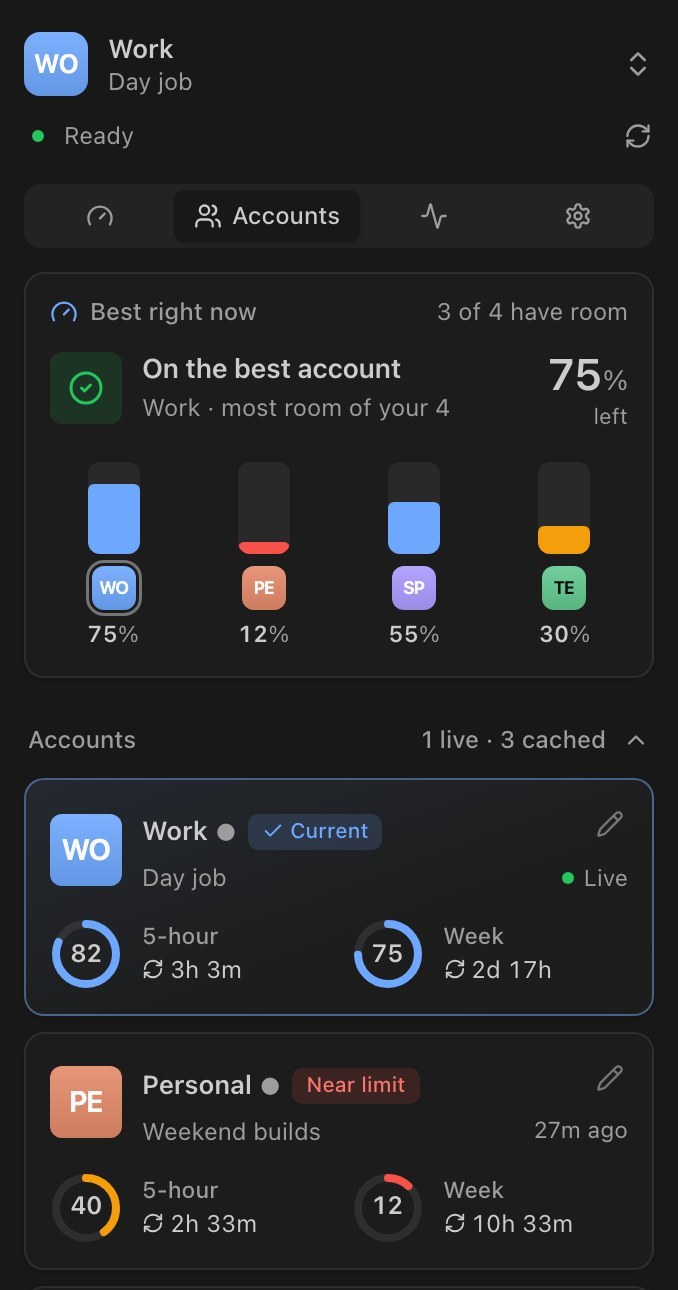
- Every account in one place. A card for each account shows what's left of its 5-hour and weekly limits, and when each refills.
- Best right now. It names the account with the most room left and gives you a Switch button.
- Names, colours and photos. Give each account its own, so Work and Personal are easy to tell apart.
- A heads-up at 80% and 95%. When the account you're on passes 80% or 95% of a limit, Layers tells you, with a button to switch to the account with the most room.
- Adding an account. Click Add account, sign in on Claude's own sign-in page, then give the account a name.
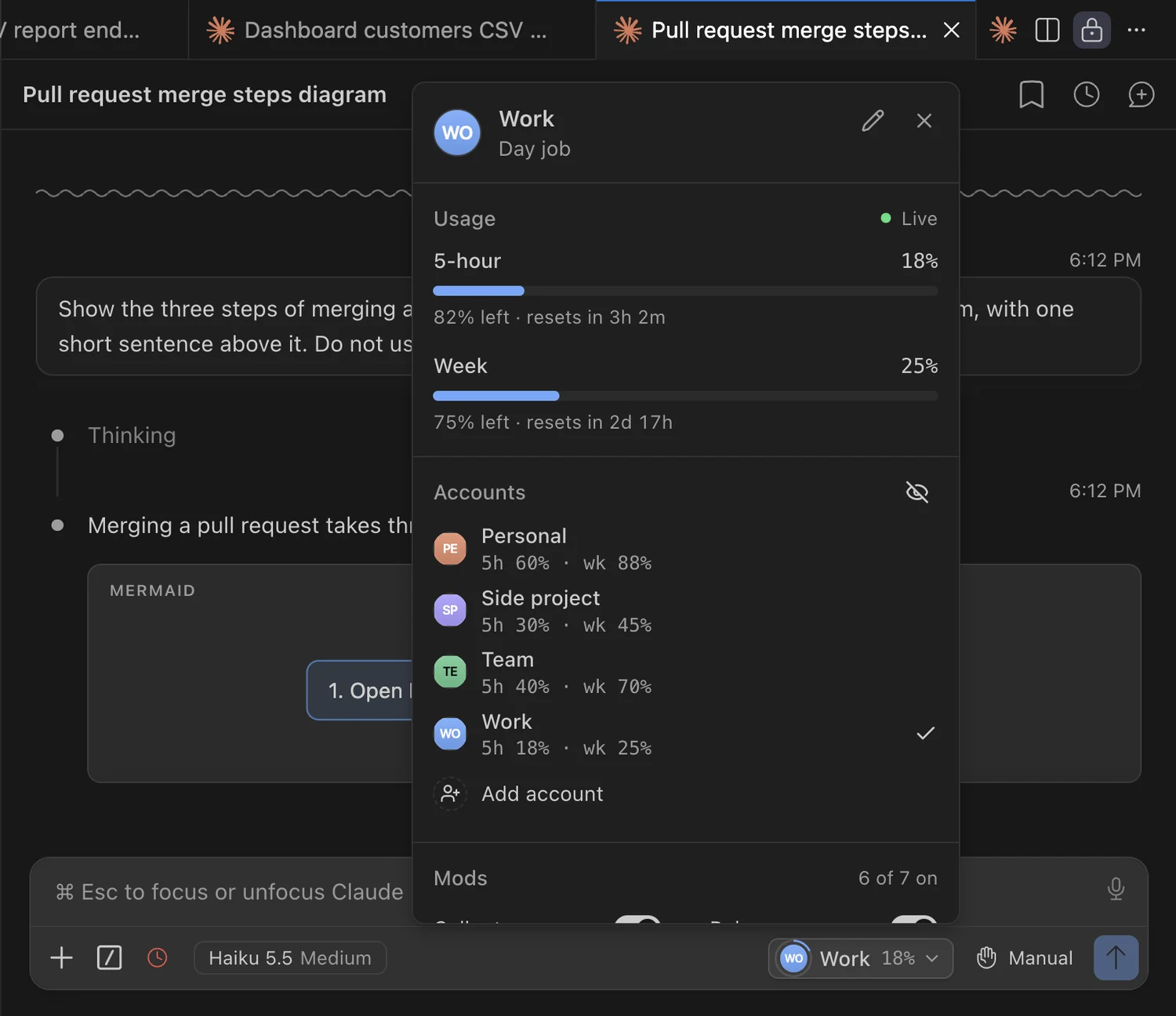
The Layers button in Claude's message box shows the account you're on and its 5-hour usage. Click it to see every account and switch. New chats use the new account right away. If a chat that was already open still shows the old account, reload the window.
Layers changes Claude Code's installed files only after asking, and keeps a backup. Layers: Remove the layer (restore Claude Code's files) puts them back, and uninstalling does the same the next time VS Code restarts. Layers has no servers, no sign-up and no tracking. Layers needs VS Code 1.100 or newer, and VS Code installs Claude Code along with it. It works in VS Code, not in the terminal, the desktop app or claude.ai. It's tested on macOS; Windows and Linux are untested so far. You can install it from the VS Code Marketplace.
Use accounts that are yours
Anthropic's docs use work and personal accounts as the example, and that's the setup this page is about: your employer's account for your job, your own subscription for your own projects.
- Don't share sign-ins. Anthropic's Consumer Terms say: "You may not share your Account login information, Anthropic API key, or Account credentials with anyone else."
- Switching doesn't give any account more room. Advertised Pro and Max limits "assume ordinary, individual usage". Anthropic's wrap-up allowance terms name "an attempt to get around usage limits (for example, through multiple accounts or automation designed to exploit the allowance)" as a reason to withhold that allowance.
- Keep work accounts for work. If your employer gave you the account, its rules apply too.
Questions
Can I use two Claude accounts in VS Code at the same time?
You can stay signed in to both, with one settings folder each. The panel uses the folder that claudeCode.environmentVariables names, or ~/.claude without it. To use the other account alongside it, run it in VS Code's terminal with an alias such as claude-work, which needs the standalone install.
Why does Claude Code still use my old account after I switch?
Type /status to see the account and which sign-in is in use. The usual causes: an approved ANTHROPIC_API_KEY or a CLAUDE_CODE_OAUTH_TOKEN, which wins over any folder's login; or a CLAUDE_CONFIG_DIR value with ~ or a relative path, which the panel ignores. If a chat still shows the old account, start a new chat or run Developer: Reload Window.
Do I lose my chats when I switch accounts?
No. Switching folders doesn't delete anything. Each folder keeps its own session history, so the chat list shows the chats of the folder in use. Switch back and the others are there. Layers switches the same way: it changes one VS Code setting.
Is Layers made by Anthropic?
No. I make Layers on my own. It's free and unofficial, and Anthropic doesn't make, endorse or support it. It works on top of Anthropic's Claude Code extension, which VS Code installs along with it.
Sources
I checked every source below on 23 October 2026.
- Claude Code Docs: Authentication
- Claude Code Docs: Use Claude Code in VS Code
- Claude Code Docs: Environment variables
- Claude Code Docs: Quickstart
- Claude Code Docs: Claude Code changelog
- Claude Code Docs: Legal and compliance
- Claude Help Center: Manage API key environment variables in Claude Code
- Claude Help Center: How do usage and length limits work?
- Claude Help Center: Claude Code Wrap-Up Allowance
- Anthropic: Consumer Terms of Service